

Viewers forgive a lot of visual imperfection if a video sounds good, and almost nothing if it sounds bad. AI video clips usually come without any audio, so sound is entirely your job. The good news is that strong sound design is achievable with free tools and a little method. This guide covers voice, music, effects and mixing.
The three layers of sound
- Voice: narration or dialogue, the main information layer.
- Music: emotion and pace.
- Sound effects and ambience: realism and space.
Most good videos use all three, balanced so the voice stays clear.
Voiceover options
Record yourself or a voice actor
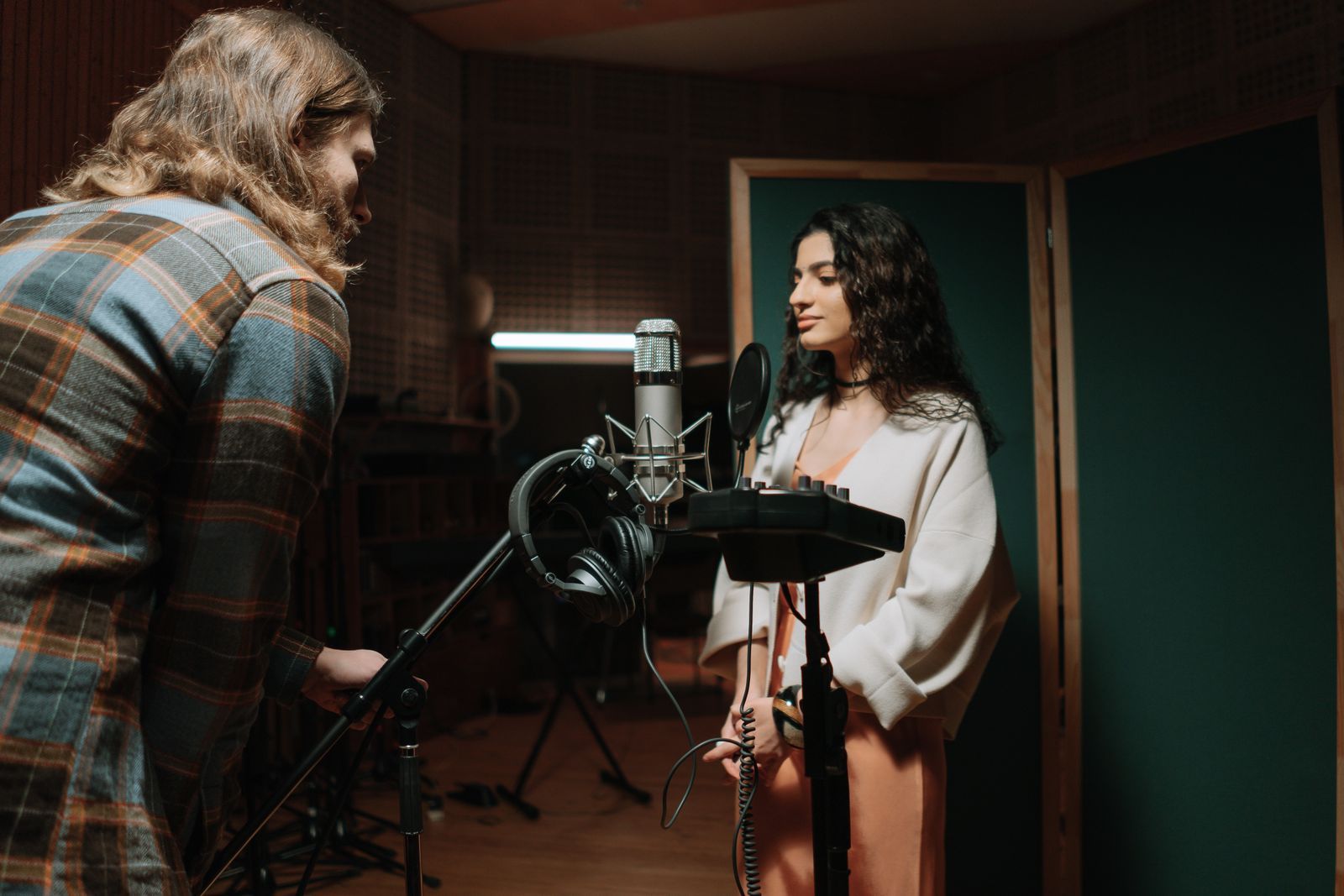
A human voice is still the most natural. A decent USB or XLR microphone in a quiet room with soft furnishings is enough. Record close to the microphone, keep a consistent distance, and leave a few seconds of silence at the start for noise reduction.
AI text-to-speech
Modern AI voices are expressive and quick to produce. To make them sound natural:
- write for speech: short sentences, contractions, natural rhythm;
- use punctuation to control pauses, and split long paragraphs;
- try several voices and pick one that fits the tone;
- adjust speed slightly slower than default for narration;
- generate line by line so you can redo individual lines.
Voice cloning
Cloning creates a synthetic version of a specific person’s voice. It is only acceptable with that person’s clear, informed consent, ideally written, covering how the voice will be used. Cloning a voice without permission, especially a public figure or someone you know, can be illegal and is banned by reputable services. Your own voice is fair game.
Music
Licensing first
Using a popular song without a licence can get your video muted, blocked or demonetised, and can lead to legal claims. Safe sources include:
- royalty-free music libraries with clear licences for your use;
- platform audio libraries provided for creators;
- music you commissioned or composed;
- AI music generators whose terms grant you the commercial rights you need.
Read the licence for each track: personal versus commercial use, attribution and whether it covers your platform.
Choosing music
Choose music for the emotion of each section, not just the whole video. Instrumental tracks work best under narration. Check that the track’s energy builds and falls in a way that fits your edit, or edit your video to the music’s structure.
Sound effects and ambience
Ambience
Every location has a background sound: wind, city traffic, birds, a room’s quiet hum. Placing ambience under each scene instantly makes AI footage feel like a real place. Change ambience when the scene changes.
Spot effects
Add sounds for visible actions: footsteps, doors, a cup set on a table, waves, a page turning. Sync them precisely to the picture. These small sounds sell the reality of a shot more than any visual fix.
Sources
Use licensed sound-effect libraries, free libraries with clear licences, AI sound-effect generators with suitable terms, or record your own with a phone in a quiet space. Recording your own effects, known as foley, is easier than it sounds and very satisfying.
Mixing basics
Good mixing keeps the voice clear and everything else supporting it.
- Voice is the loudest element. Aim for consistent level throughout.
- Music sits well below the voice, and can rise between lines. Use ducking, automatically lowering music when the voice plays, if your editor supports it.
- Ambience is quiet but present; you should miss it if it disappears.
- Effects are as loud as they need to be to feel natural.
- Overall loudness: many platforms normalise loudness. A common target for online video is around −14 LUFS integrated, but follow your platform’s guidance.
Check your mix on headphones, laptop speakers and a phone. A mix that sounds good only on studio headphones will disappoint most viewers.
Cleaning up voice recordings
- apply noise reduction gently, using your silent section as the noise profile;
- use a high-pass filter to remove low rumble;
- add light compression to even out loud and soft words;
- remove mouth clicks and long breaths, but keep natural breathing.
Sound for music videos and silent pieces
For music videos, the song is everything; edit the picture to its structure. For short silent-style pieces on social platforms, still add subtle ambience and music, and use captions for any information, since many viewers watch muted.
A simple workflow
- Record or generate the voiceover and edit it first.
- Edit pictures to the voice.
- Add ambience per scene.
- Add spot effects.
- Add music and set levels.
- Mix, check on several devices and export.
A worked example
Take a 30-second clip of a fishing boat at dawn. Without sound, it looks like a pretty animation. Now add: a low hum of wind and gentle waves as ambience; the creak of the boat’s wooden hull and the clank of a chain as spot effects timed to the motion; the cry of a distant gull once, near the start; and a quiet, slow piano track that fades in after five seconds. Finally, a calm narrator says one line: “Every morning, before the town wakes, he goes out alone.” The same pixels now feel like the opening of a film. That is the power of sound, and it took fifteen minutes.
Common sound mistakes
- Music too loud under narration, making words hard to follow.
- No ambience, leaving scenes feeling empty and artificial.
- Effects out of sync by a few frames, which viewers sense even if they cannot name it.
- Changing narrator voices between videos in a series, breaking continuity.
- Unlicensed tracks that get the video muted or claimed after publishing.
Frequently asked questions
Can I use any song if I credit the artist?
No. Credit is not a licence. You need permission or a proper licence.
Are AI voices allowed on YouTube?
Generally yes, but follow disclosure rules when realistic synthetic voices could mislead viewers.
What is the quickest improvement for most AI videos?
Adding ambience and a few spot effects under every shot. It takes minutes and changes how real the whole video feels.
